Setup guide
Archive ArtifactPass links in Slack
Install a customer-owned bot that copies a file into the thread where your team posts a live ArtifactPass link. The Slack copy follows your workspace retention policy after the original link expires.
You need a Cloudflare account with a workers.dev subdomain, permission to install a Slack app, and permission to add it to each channel you select. Even a team that uses only public ArtifactPass links needs its own Cloudflare account for this customer-owned bot. Cloudflare resources may count against that account’s plan. If you want to archive links from a private deployment, set up that deployment first.
Launch the wizard and choose link sources
Run the command below. The CLI prints a local link. Open it in the browser profile you want; the wizard stays on your computer and saves progress as you go. Node.js 22 or newer must be installed for its Cloudflare commands.
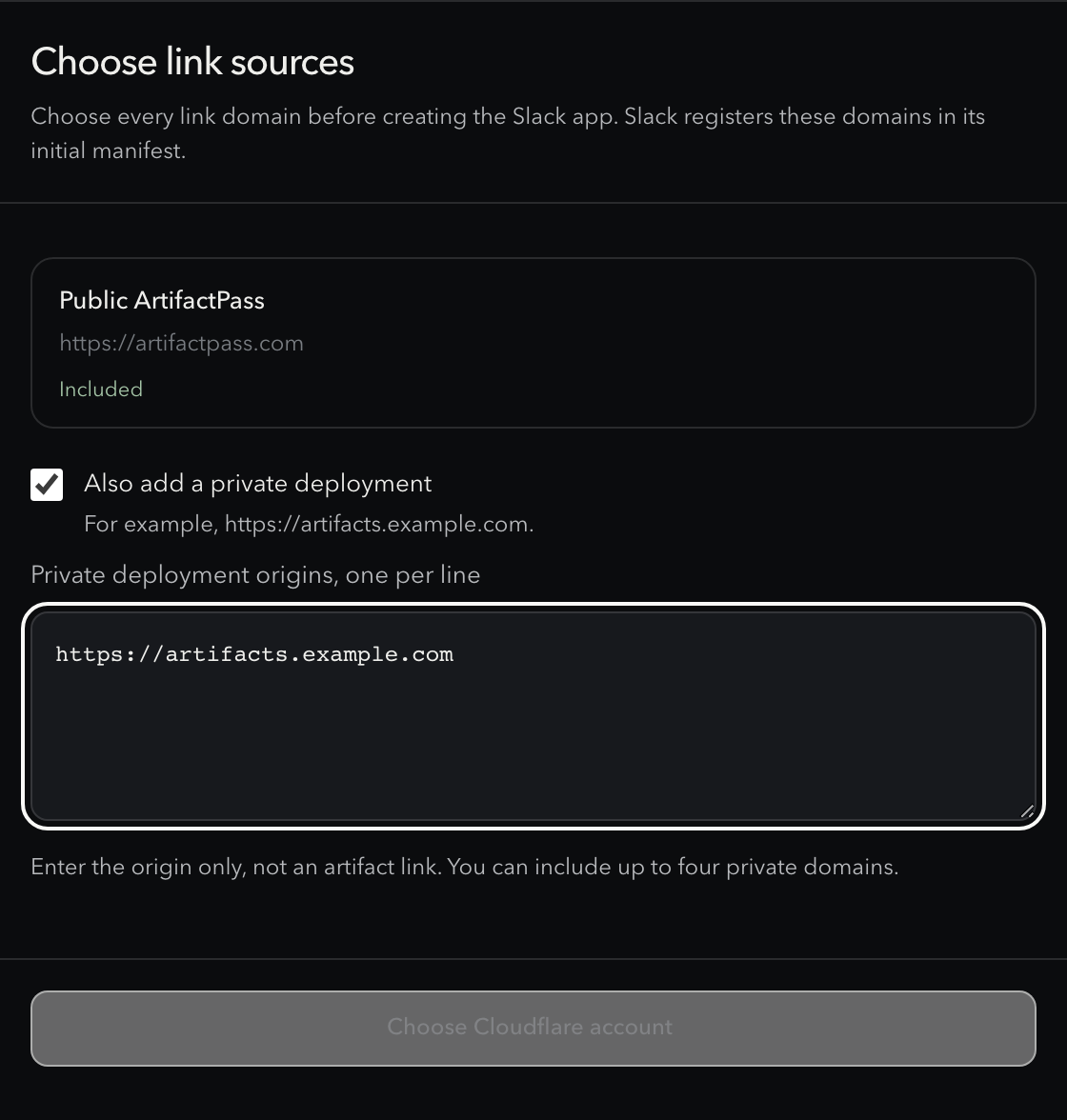
pnpm dlx artifactpass slack setupPublic https://artifactpass.com links are included. If you already run a private deployment, select Also add a private deployment and enter its HTTPS origin, such as https://artifacts.example.com. Enter the origin, not a particular /a/… link. One Slack app can register up to five source domains total, including the public source.
Connect the account that will own the archive
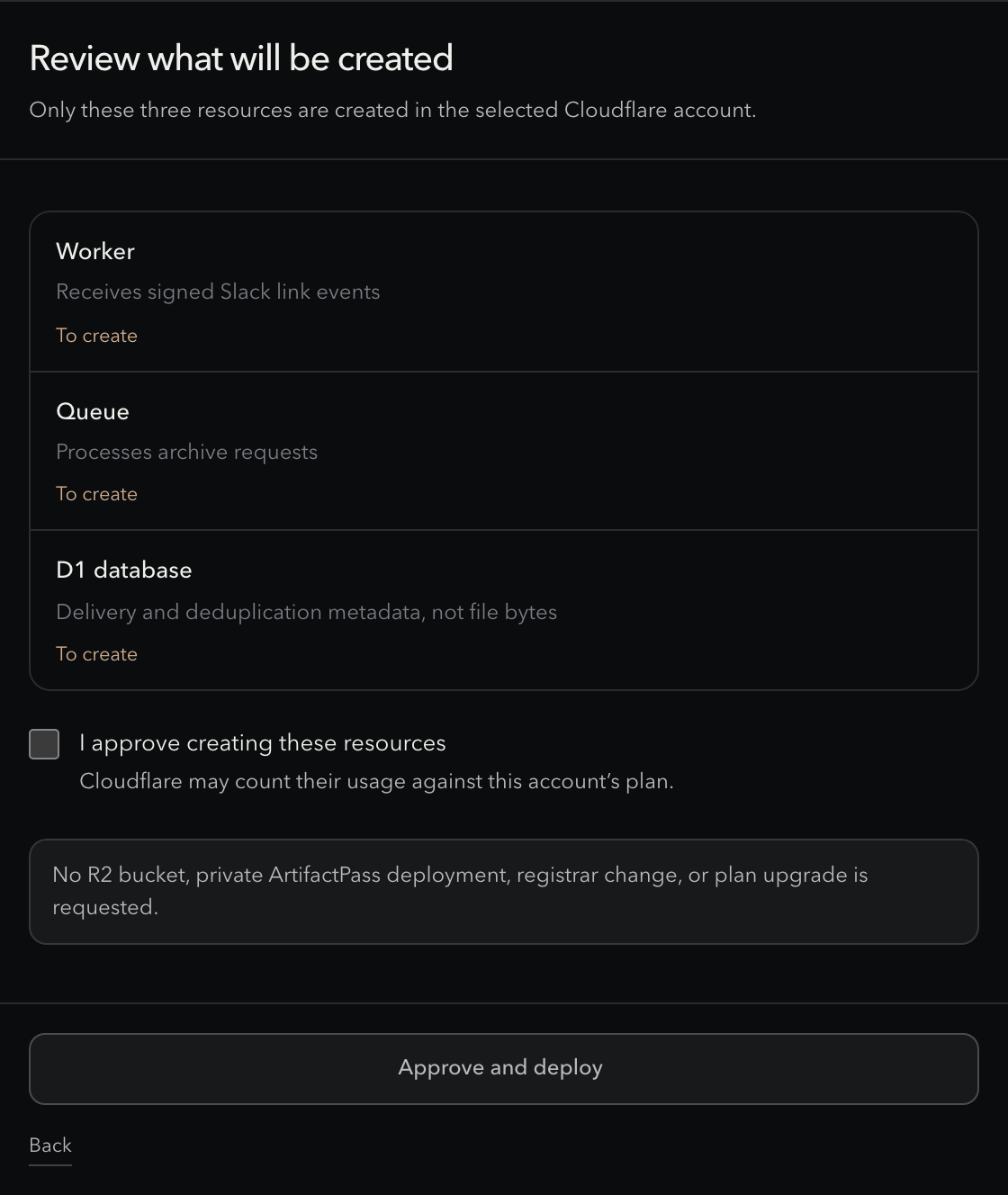
The wizard checks for connected Cloudflare accounts. If yours is absent, choose Connect Cloudflare and open the sign-in link shown in the wizard in the correct browser profile. Select the intended account, then review and approve one Worker, one Queue, and one D1 database. No private ArtifactPass deployment is created.
Create and install one Slack app
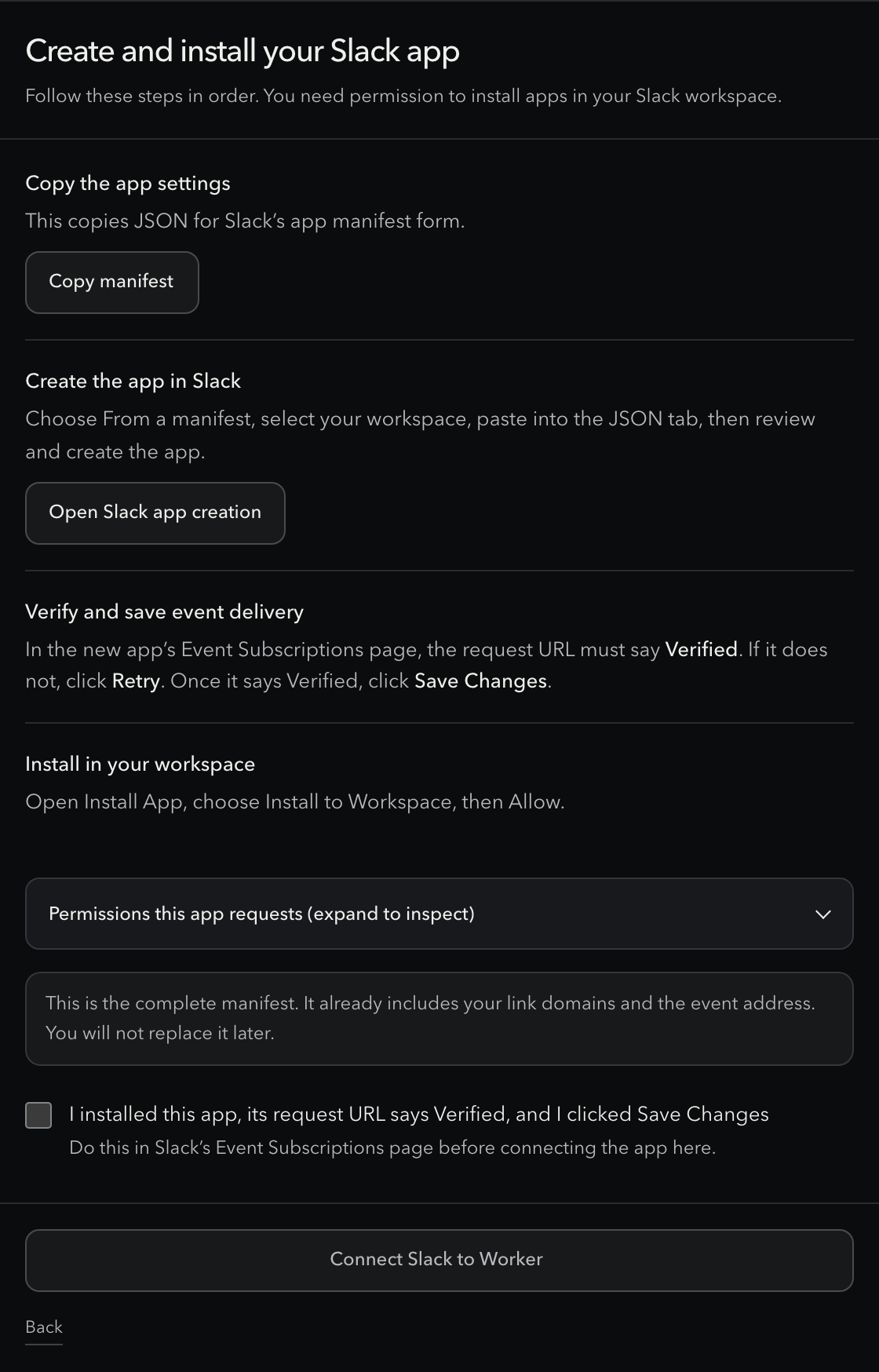
Choose Copy manifest in the wizard. In Slack’s app dashboard, create an app From a manifest in the workspace you want, paste the JSON, and create it. The initial manifest already contains your source domains and the Worker event address. You should not need a second manifest install during first-time setup.
On the new app’s Event Subscriptions page, the request URL must say Verified. If not, click Retry. Once verified, click Save Changes, then install the app into the workspace. The requested scopes are links:read, links:write, and files:write; no message-history scope is needed.
Connect that Slack app to the Worker
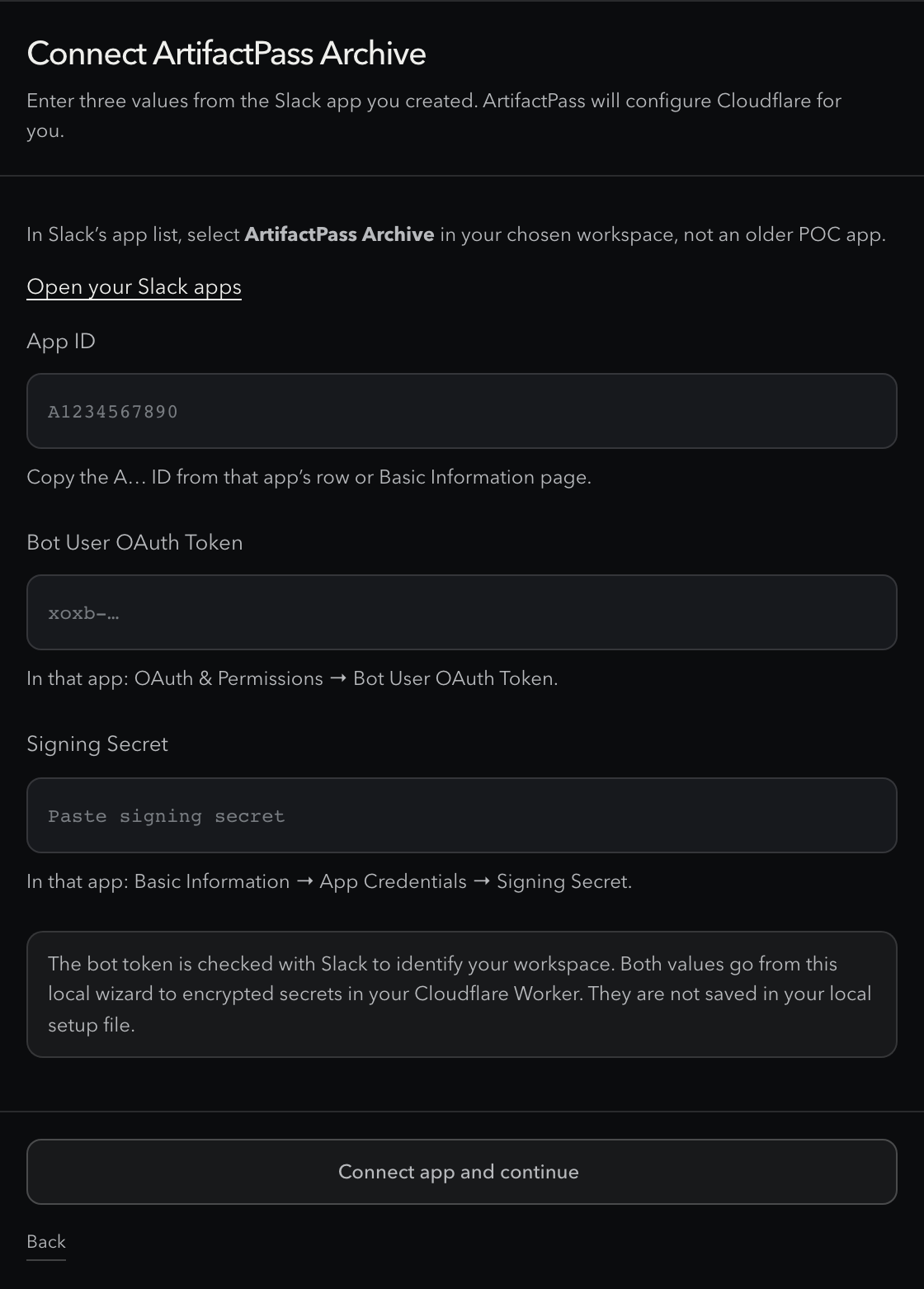
In the Slack app you just created, copy its App ID from the app list or Basic Information page, its Bot User OAuth Token from OAuth & Permissions, and its Signing Secret from Basic Information → App Credentials. Enter them in the local wizard, not in terminal arguments or chat.
The wizard checks the bot token with Slack and puts the token and signing secret into encrypted Cloudflare Worker secrets. The local setup file stores non-secret resource and app IDs, not these credentials.
Choose channels, then add the app to each one
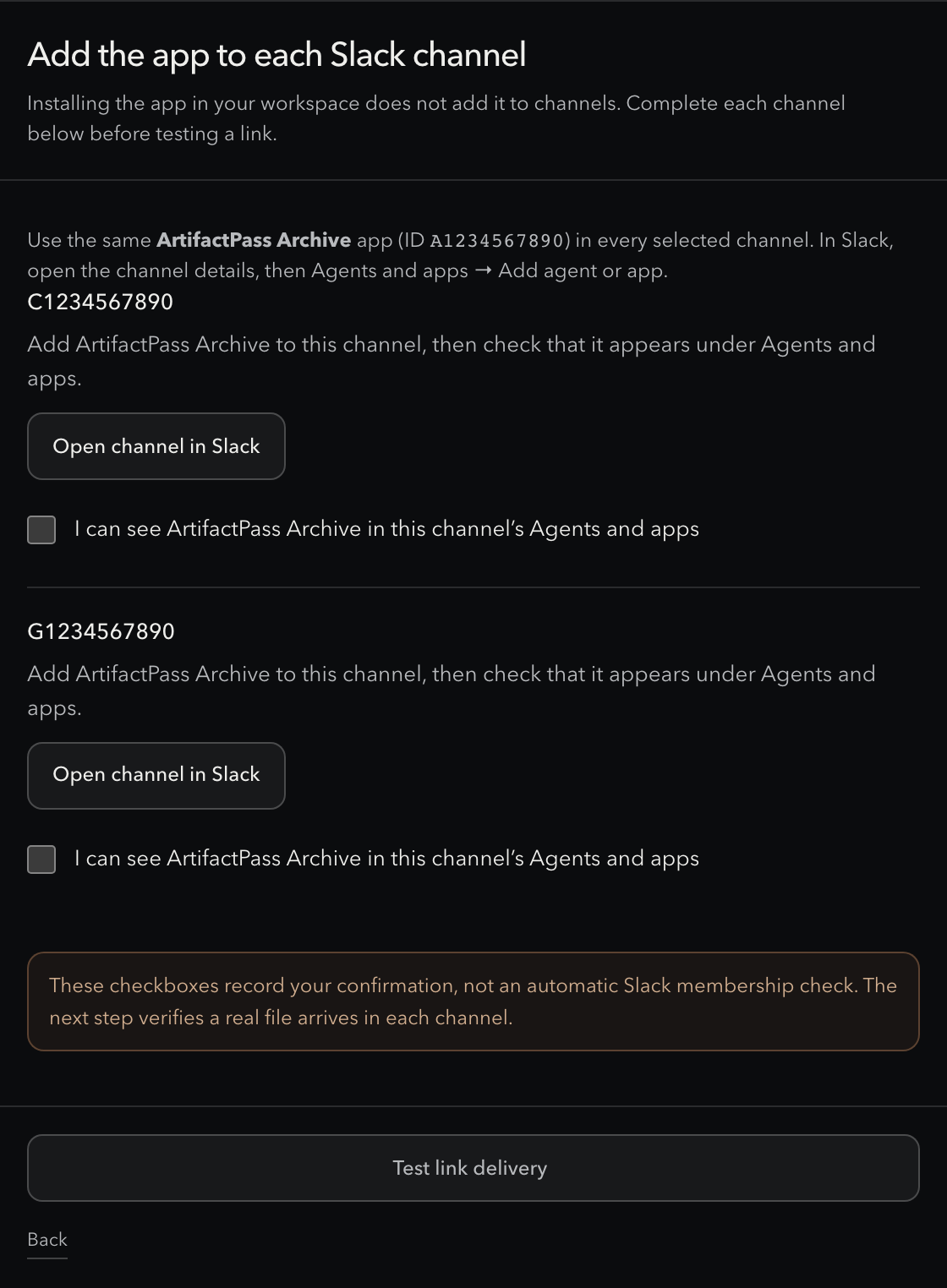
Paste all channel links into the wizard and save them together. A private channel link might look like https://example.slack.com/archives/G1234567890. Installing an app in the workspace does not add it to any channel. Open each selected channel in Slack, choose Channel details → Agents and apps → Add agent or app, and add the same ArtifactPass Archive app.
The wizard asks you to confirm that the app appears in each channel. That checkbox records your observation; it is not an automatic membership check. The next step proves delivery.
Post fresh links and verify the copied files
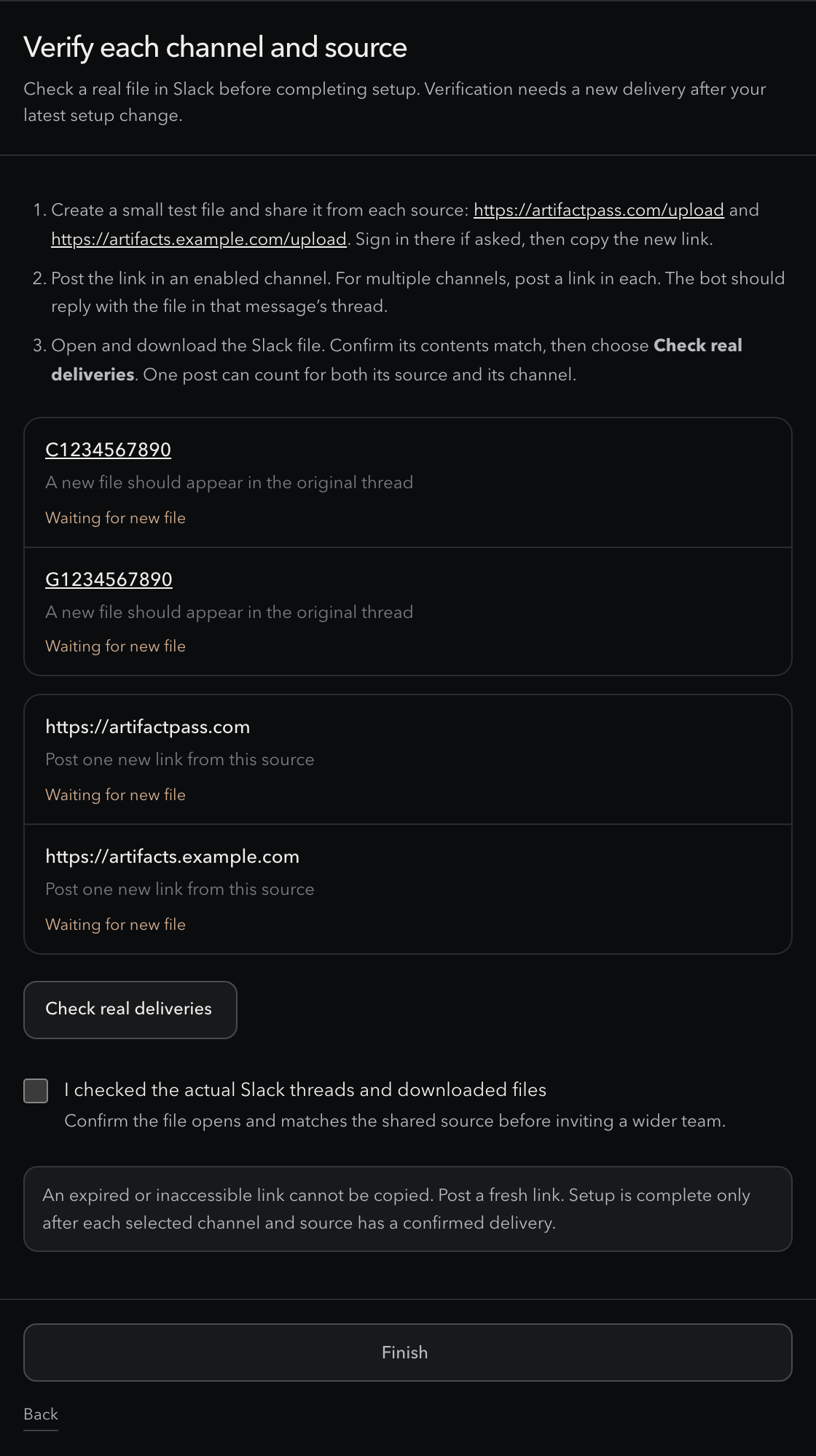
Create a small test file at artifactpass.com/upload. If you added a private source, create another at https://artifacts.example.com/upload, replacing the example hostname with yours. Post a fresh live link in every enabled channel and at least one from each source. One post may count for both its channel and source. The bot should put a file in the original message’s thread.
Open and download each Slack file to confirm its contents. Then choose Check real deliveries in the wizard and confirm the inspection. It shows Ready only after each chosen channel and source has a successful delivery since the latest setup change.
After setup
The archive is optional and separately managed.
Use slack status to inspect deliveries, slack pause to stop transfers, and slack update to update only the archive Worker. A private ArtifactPass deployment has its own update flow. Files already copied into Slack remain subject to your workspace’s retention policy, even if the original link expires or you later uninstall the bot.